
PXPlay: Remote Play
GF Frame Technologies (Streaming Dev)Tools
4.72.27K Reviews
- Version
- 8.1.1
- Installs
- 100.00K
- Age Rating
- Everyone
Screenshots
Our Review of PXPlay: Remote Play
 Analysis by Appyee
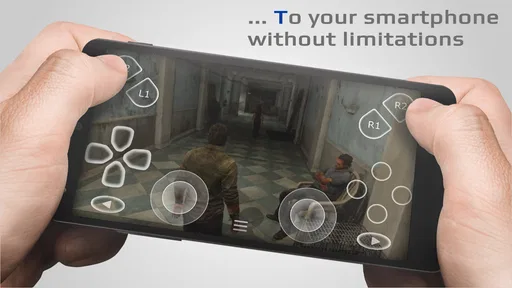
I tend to think about remote play less as a way to squeeze a console session into every spare moment and more as a useful option when the main screen is occupied. PXPlay: Remote Play is an Android tools app from Streaming Dev that lets you play remotely on a phone, with support for FSR upscaling and controllers. That combination makes it worth considering if you already have a compatible console setup and want another place to play, though it is not a substitute for a stable connection or a controller that feels comfortable in your hands.
What I would check before relying on it
Remote play involves more than installing an app: the phone, console, home network and account setup all matter to the experience. I would first try a short session at home, where I can see how the controls feel and whether the picture stays steady, before planning to play away from home. A smooth result in one room is encouraging, but it does not guarantee the same responsiveness on a different network.
I also avoid treating an app’s broad feature claims as a promise that every game or setup will behave identically. Streaming sends a live picture and your inputs across a connection, so a game with tight timing can expose delay more quickly than a slower-paced one. For story-driven games, menus or routine progression, a little imperfection may be easier to live with; for a precision-heavy match, the console and a television are still the safer choice.
Controls and picture are worth testing together
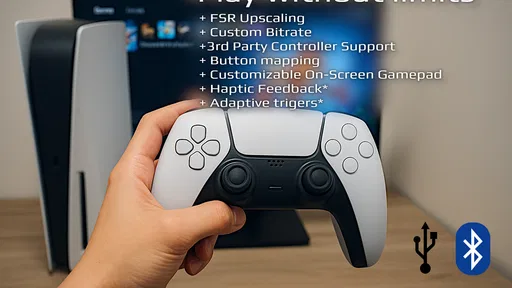
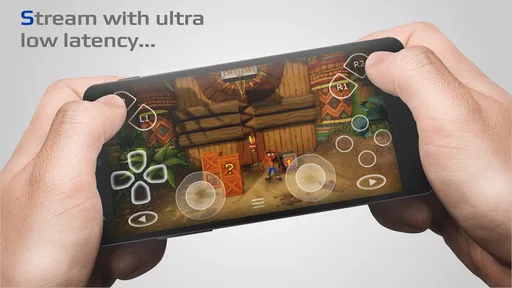
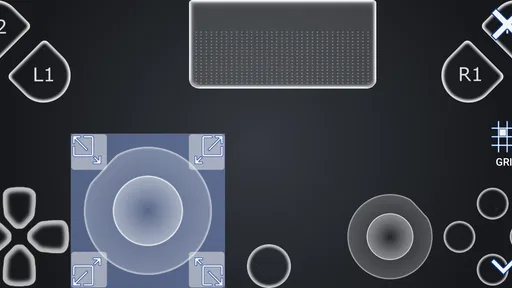
Before settling on a control layout, I would test it in a game that uses several buttons and camera movement, not just a menu. The on-screen controls may be convenient when I have no controller nearby, but covering part of the display or reaching awkwardly for a button can make a longer session tiring. Moving or resizing the controls is useful precisely because there is no single layout that suits every phone, hand size or game.
An external controller can make the phone feel more like a compact screen for console play, but it also changes the practical setup: I need to bring the controller, keep it charged and make sure it connects as expected. If I am only playing for a few minutes while waiting somewhere, touch controls may be the simpler choice. For a longer session, a controller is usually the more comfortable trade-off.
Where remote play fits into an ordinary day
A realistic use for me is picking up a game while someone else is using the television, or continuing a relaxed single-player session from another room. I would start with a quick connection check, choose a game that does not punish a missed input, and use a controller if I expect to play for a while. That makes the app a flexible second screen rather than a reason to expect console play to work perfectly everywhere.
It is also a poor fit for every outing. Public or shared networks can be unpredictable, and mobile streaming can consume both battery and data. If I do not know how reliable the connection will be, I would avoid starting a session that depends on precise timing or uninterrupted play. A locally installed mobile game is often more dependable in that situation because it does not rely on streaming from a console.
Seamless Setup and Interface
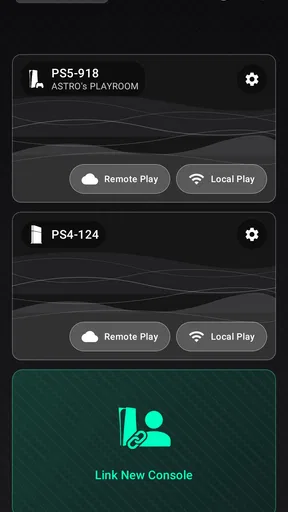
First things first, setting up PXPlay: Remote Play is a breeze. You don't need a degree in rocket science to get started. The app guides you through a straightforward setup process that even my grandma could handle. Once you've got it all configured, the user interface is clean and intuitive, making it easy to navigate through your library of games. The app supports various consoles, which is perfect for someone like me who can’t decide on a single platform.
Performance and Streaming Quality
Now, let’s talk about what really matters—the performance. I tested the app over different networks, and it held up surprisingly well. On a strong Wi-Fi connection, the streaming quality was top-notch, with minimal lag. I was impressed by how responsive the controls felt, almost as if I was playing directly on the console. Of course, your experience might vary if you're on a slower network, but for the most part, PXPlay delivers a solid gaming experience.
One detail I pay attention to is whether a small delay comes and goes or remains steady. A stable, slightly delayed response can be easier to adapt to than a connection that repeatedly stutters, particularly in games where timing matters. I also try the same route through the game after changing a setting, rather than adjusting several things at once; that makes it easier to tell whether the picture or control response actually improved.
Customizable Controls
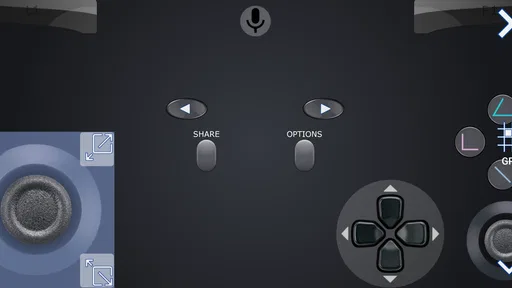
One of my favorite features is the ability to customize the on-screen controls. You can adjust the layout and size to suit your preferences, which is a lifesaver if you have larger fingers like mine. Plus, if you're a fan of external controllers, the app supports them too, offering you the flexibility to play however you want. This kind of customization is what sets PXPlay apart from other remote play apps.
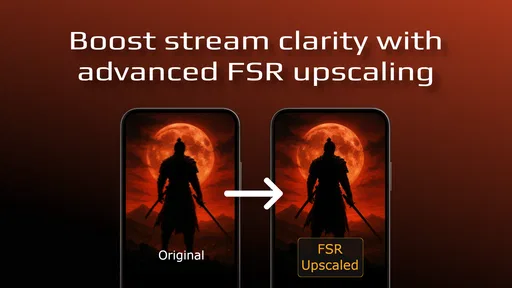
FSR upscaling is another reason the app may appeal to someone playing on a phone rather than a large screen. It can be useful when I want a clearer-looking image on a compact display, but I would judge it alongside responsiveness instead of assuming a sharper picture is always the better choice. If a game already looks comfortable to read and play, I would prioritize steady controls over chasing extra visual polish.
Battery and Data Usage
Let’s face it, gaming can be a battery drainer, and streaming doesn't help. However, I found that PXPlay: Remote Play is surprisingly efficient. It's optimized to use less battery and data than I expected, which is a big plus if you're gaming on the go. Just make sure you have a portable charger handy for those longer sessions.
For a data-sensitive session, I would make a deliberate choice about where I play instead of assuming that a short test tells me what a longer one will use. Wi-Fi is the sensible default when it is available and dependable; away from it, I would keep an eye on my phone’s data use and battery during an initial brief session. That is especially important if I am travelling, sharing a plan or relying on the phone for navigation afterward.
What the purchase and version mean for a new user
The app is priced at $6.99, so I would decide based on how often I expect to use remote play, not just the appeal of trying it once. If I already have a console and regularly want to play away from its screen, a paid tool can make sense; if I only need occasional access, the console maker’s own remote-play option or simply playing on the main display may be enough. The right comparison is not only which app has more settings, but which one fits the devices, account setup and games I already use.
Its current version is 8.0.1, and it requires Android 6.0 or later. The age rating is Everyone, which describes the app’s content classification rather than guaranteeing that every streamed game is appropriate for every player. It has an average rating of 4.8 from around 22,000 ratings, with roughly 2,200 written reviews and over 100,000 installs. Those figures suggest that many people have tried it, but I would still use my own connection and controller tests to decide whether it suits my setup.
Trust, access and user choice
When an app is part of a remote gaming setup, I pay attention to the account and device steps it asks me to complete, rather than assuming that a clean interface tells the whole privacy story. I would read the permission prompts when they appear and grant only what I understand to be necessary for the way I intend to use the app. If a permission seems unrelated to connecting or playing, I would pause and check the app’s current explanation before proceeding.
I would also make sure I understand which console account is being used and where I am signed in, especially if I share a phone or console with someone else. Account access is a practical concern as much as a privacy one: a household device can be convenient, but saved sessions and shared hardware make it important to know who can start a remote session. I would sign out or remove access when the phone is no longer mine to use, rather than leaving that decision until later.
Streaming itself is the data-sensitive part I can anticipate from the way remote play works: the game image reaches the phone over a network, and controls travel back toward the console. That makes network choice, screen visibility and the setting where I play part of the experience. I would avoid entering private account details while someone can easily see my screen, and I would not use an unfamiliar network for a sensitive account task simply because the game launches successfully.
Who should choose it—and who should pass
I would recommend trying it if you already play on a supported console, have dependable Wi-Fi where you expect to use it and value the option to move a session to your phone. It is especially appealing to players who can adjust controls to their hands or bring a controller for longer play. The Android tools category is a sensible home for an app like this: it extends access to another device rather than supplying a separate library of mobile games.
I would skip it if you expect the phone to provide a completely independent gaming experience, if your usual networks are inconsistent, or if touch controls are uncomfortable and you do not want to carry a controller. I would also choose a native mobile game for commutes with unreliable coverage, and the console’s regular display for competitive play where even a modest delay could spoil the experience. Those are not flaws unique to this app; they are the trade-offs of remote streaming.
Support and updates in perspective
Something that often gets overlooked is the support and updates from the developers. I was pleased to find that PXPlay offers excellent customer support, and they’re pretty active with updates. This is crucial for any app you rely on regularly, as it ensures any bugs or issues are quickly addressed. It’s nice to know they’re committed to improving the user experience.
Even with a current version, I would keep expectations practical: an update cannot make a weak network behave like a strong one, and a controller that is uncomfortable will remain uncomfortable. If a problem appears, I would first check whether it happens on one network or across different ones, then test the same game with the on-screen layout and an external controller. Changing one part of the setup at a time makes troubleshooting less frustrating and gives support a clearer description of what went wrong.
My cautious verdict
In conclusion, if you're looking for a reliable and feature-rich remote play app, PXPlay: Remote Play is definitely worth checking out. It offers a seamless setup, excellent performance, and the flexibility to customize your gaming experience. Whether you're a casual gamer or a hardcore enthusiast, this app has something for everyone. So, grab your phone, download the app, and take your gaming to the next level. Happy gaming!
My recommendation comes with one condition: treat the first session as a test of your own setup, not a guarantee about every room, route or game. If the connection feels stable, the controls suit you and the price makes sense for how often you will use it, it can be a handy way to keep playing when the television is unavailable. If those pieces do not line up, choosing a local mobile game or staying with the console screen is the more sensible call.
Verdict
Strengths of PXPlay: Remote Play
- Seamless connection across devices.
- User-friendly interface for easy navigation.
- Supports high-quality streaming.
- Low latency for smooth gameplay.
- Compatible with various controllers.
Limitations of PXPlay: Remote Play
- Requires strong internet connection.
- Limited to specific device brands.
- Setup can be time-consuming.
- Occasional app crashes reported.
- Subscription needed for premium features.
Similar Picks in This Category
View All
Google LLC4.0

Gboard - the Google Keyboard
Google LLC4.5

Google Play services
Google LLC4.3

Google Play Store
Google LLC4.9

Files by Google
Google LLC4.5

SHAREit: Transfer, Share Files
Smart Media4U Technology Pte.Ltd.4.3
Frequently Asked Questions
What is PXPlay: Remote Play and how does it work?
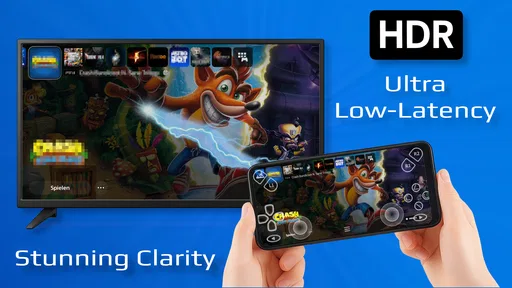
PXPlay: Remote Play is an innovative app that allows users to stream their gaming experience from their console or PC to their mobile device. By connecting through Wi-Fi or a stable internet connection, you can play your favorite games on the go, enjoying a seamless transition from your main gaming setup to your handheld device.
Is PXPlay: Remote Play compatible with all gaming consoles?
PXPlay: Remote Play supports a variety of popular gaming consoles, including PlayStation and Xbox. However, compatibility may vary depending on the specific model and firmware version. It's recommended to check the app's official compatibility list to ensure your console is supported before downloading.
What are the system requirements for using PXPlay: Remote Play on my device?
To use PXPlay: Remote Play, your mobile device should meet certain specifications, such as running on Android 8.0 or iOS 12.0 or later, and having a stable internet connection with at least 5 Mbps speed. Additionally, a compatible controller may enhance the gaming experience, though touchscreen controls are available.
Does PXPlay: Remote Play offer customizable control settings?
Yes, PXPlay: Remote Play provides customizable control settings, allowing users to tailor the gaming experience to their preferences. You can adjust the layout of on-screen controls, connect external controllers, and even modify sensitivity settings to ensure optimal gameplay responsiveness.
Is there any cost associated with using PXPlay: Remote Play?
PXPlay: Remote Play is available as a free download, but it may offer in-app purchases or premium features for enhanced functionality. While the basic streaming services are free, additional features, such as advanced control customization or ad-free experiences, might require a subscription or one-time payment.
